Unearthed · Reading guides
Updated
Save articles for later with Unearthed
Unearthed Local combines read it later articles and RSS with Kindle and KOReader highlights in a desktop library. You can read and highlight an article in Local, then send your notes to Obsidian or Craft. Local is a one time purchase desktop app; Unearthed Online is a separate, open source web app.
Save an article and take notes
Start with an article you can open in your browser. Import it into Local, highlight the parts you want to keep and export them when you’re ready.
- In Local's RSS/article area, choose Import web page, paste the article URL and select Import Page. To make a library source immediately, enable Also create a library source.
- Open the imported article. If the RSS item contains only an excerpt, use Get Full Article where available and check the result against the original page.
- Select a passage, choose a highlight colour and add a note. You’ll find both in the article’s highlight list.
- If the article is not yet a library source, import it into the library before exporting. Check its title, author and source URL.
- Choose your Obsidian vault or Craft connection and export. Enable the destination's article content option if you also want the saved body text.
- Open the exported note in Obsidian or Craft. Later exports will pick up new highlights you add to the article.
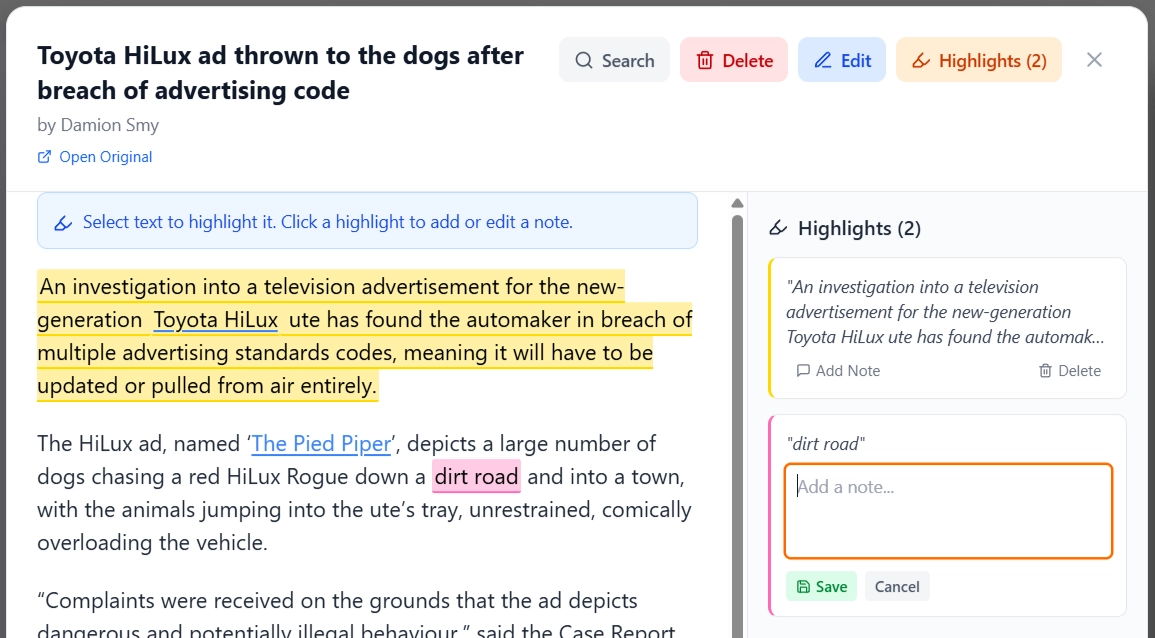
Save articles for later and follow RSS feeds
Bookmark an article to add it to Read Later, or subscribe to a site’s RSS feed to bring new posts into Local. Some feeds include the full article; others include a summary. Use Get Full Article where available to fetch the rest. When you want an article in your exported notes, add it to your library first.
Should I export the whole article or just highlights?
Export just the highlights and notes for a short record of what stood out, or include the article text so you can reread it alongside them. The article export uses the text Local imported, so check that it downloaded fully before relying on that copy.
| Export | Best for | What to keep in mind |
|---|---|---|
| Highlights and your notes | Keeping the passages you want to remember | Keep the source URL with your notes so you can return to the article |
| Article text and highlights | Rereading the article alongside your notes | Enable article content in your export settings and check that the full text imported |
| Leave it in Read Later | Saving something you haven’t read yet | Add the article to your library when you want to export it |
Read on your phone
You can install Unearthed Mobile from your phone’s browser. Save web articles, follow RSS feeds and read on your phone. Connect it to Local to share books, articles and highlights between the two apps. Kindle and KOReader highlights reach Mobile through Local. Mobile is a separate purchase.
What to check before leaving another reader
Try a few articles from the sites you read regularly. Some pages won’t import cleanly, especially if they need a login or subscription. If you’re moving from Reader, you’ll need to handle your existing library separately: Unearthed doesn’t import a full Reader account, including its queue, newsletter inbox and review history.
Why is an article empty, incomplete or missing from my notes?
Open the original page to check whether it needs a login or subscription. If you’re looking at an RSS excerpt, try Get Full Article. If the article is missing from Obsidian or Craft, make sure it’s in your library and that you’ve enabled that export. To include the full text, turn on article content for the destination you’re using.