Unearthed · Reading guides
Updated
How to get Kindle highlights into Obsidian
There are two ways to get your Kindle highlights into Obsidian. Unearthed Local exports Markdown files straight to your vault, with no browser extension or Obsidian plugin needed. Unearthed Online imports through the browser extension and sends highlights to your vault through the Obsidian plugin. Local is a one time purchase; Online has a monthly subscription.
What you need before connecting Kindle to Obsidian
Open Amazon Kindle Notebook and check that your books, highlights and notes appear there. Unearthed imports from Notebook, so anything missing there won’t come through Kindle sync. Then choose Local or Online below.
| What you need | Unearthed Local | Unearthed Online |
|---|---|---|
| Unearthed edition | One time purchase Local app on Windows, macOS or Linux | Hosted Online subscription |
| Kindle import | Sign in with Amazon in Local's built in browser | Chrome or Firefox extension with Unearthed API key and User ID |
| Obsidian export | Select a writable vault folder on the computer | Install the Unearthed Obsidian plugin and configure its credentials |
| Obsidian Sync | Not required to write into the local vault | Not required for the plugin to write into its vault |
Documentation and links
Local: export straight to your vault
Local saves your highlights as Markdown text files in your Obsidian vault, the folder that holds your notes. Your reading library stays on your computer, and you can edit the export templates to change how the notes look.
- Install Unearthed Local on Windows, macOS or Linux.
- Connect Kindle in Local and import your available Notebook highlights.
- In Local’s Obsidian settings, select your vault and the folder where you want your reading notes.
- Choose your templates, export a book and check the note in Obsidian.
- Enable automatic export if you want new highlights added to your vault.
Online: use the open source extension and plugin
Choose Online if you want to keep your highlight library on the web. You’ll need an Online subscription, the browser extension for Kindle imports and the Obsidian plugin for exports.
- Create an Unearthed Online account and subscribe to Online.
- Install the Unearthed extension for Chrome or Firefox and enter your Unearthed API key and User ID from settings. These let the extension connect to your account.
- Sync your Amazon Kindle Notebook and confirm the books appear in Unearthed.
- Install the Unearthed Obsidian plugin, enter your Unearthed API key and User ID, and run Manual sync.
- Edit the book and highlight templates to change how your notes look. Turn on sync at startup if you want new highlights added when Obsidian opens.
What does Kindle sync include?
Kindle sync imports the highlights and notes shown in Amazon Kindle Notebook. Books or documents you copied onto your Kindle yourself may be missing there. The extension uses Amazon in the browser where you’re already signed in; you do not give your Amazon password to Unearthed Online. KOReader highlights and notes use a separate plugin.
Do I need another subscription?
Local is a one time purchase. Online has a monthly subscription. Neither needs Obsidian Sync to add notes to a vault on your computer. You can compare current prices on the Local and Online pages.
What the exported note looks like
Each book gets its own note, with the title, author, highlights and your annotations together. You can change the headings, colours and layout in the export templates. Here’s an example of a book exported to Obsidian.
> {{content}}

**Note:** {{note}}

{{location}}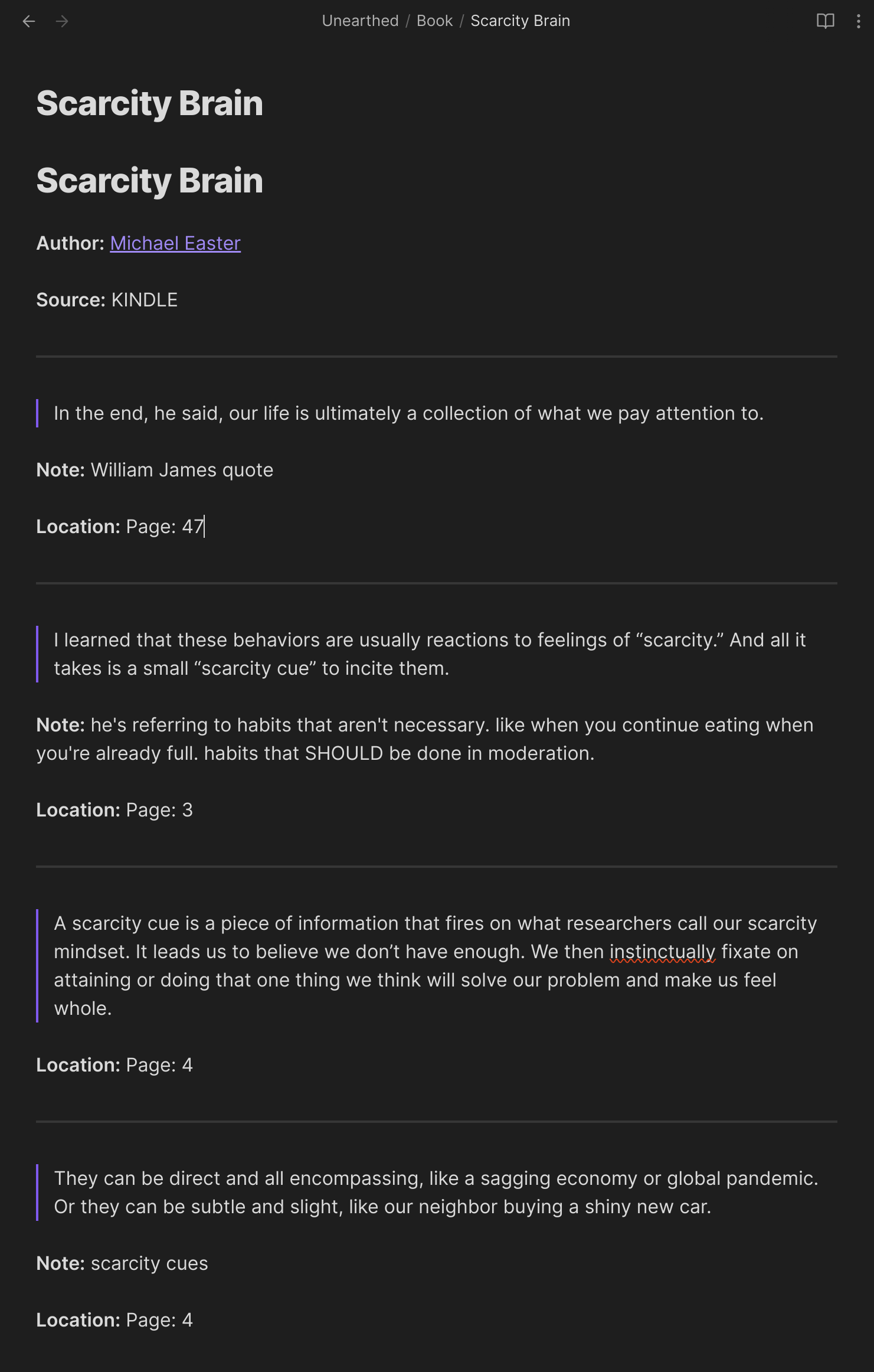
What happens when you export again?
Local can update the highlight sections it created. Keep any extra writing in the optional Personal Notes section or outside those highlight sections so a later export won’t overwrite it. Changes you make in Obsidian don’t go back to Kindle. The Online plugin handles exports separately, so try a book first if you’re moving between the two.
Documentation and links
Fix missing Kindle highlights or missing Obsidian notes
First check whether the missing book or highlight appears in Unearthed. If it does, the issue is with the export to Obsidian. If it doesn’t, start with the Kindle import.
| Symptom | What to check |
|---|---|
| A book never reaches Unearthed | Open Amazon Kindle Notebook using the same account. Sideloaded books may not be listed there. |
| The book is in Local but no note appears | Check the vault folder, export destination and whether the source is ignored. On macOS, reselect the vault if folder access was denied. |
| Online has the book but the plugin does not | Check the plugin's API key and User ID, then run Manual sync. |
| New annotations are missing | Import the latest source annotations first, then export again. Check the correct book and destination folder. |