Unearthed · Reading guides
Updated
Sync Kindle and KOReader highlights to Notion
Unearthed Online sends your Kindle and KOReader highlights to Notion, with a page for each book and its quotes and notes. Import from Kindle using the browser extension, or from KOReader using its plugin, then connect your Notion workspace in Unearthed’s settings.
Set up Kindle to Notion
Import a book into Unearthed first, then connect Notion and check that its highlights arrive.
- Create an Unearthed Online account and subscribe to Online.
- Install the browser extension and enter your Unearthed API key and User ID.
- Sync your Kindle Notebook and check that your books and highlights arrived.
- Connect Notion in Unearthed settings and choose the workspace and pages you want Unearthed to access.
- Complete the Notion setup prompts and check a synced book before importing a large library.
Reading in KOReader?
The Unearthed KOReader plugin sends highlights to the same Online library. Enter your Unearthed API key and User ID in the plugin, close the book to save recent highlights, then send the books to Unearthed.
What the Notion export contains
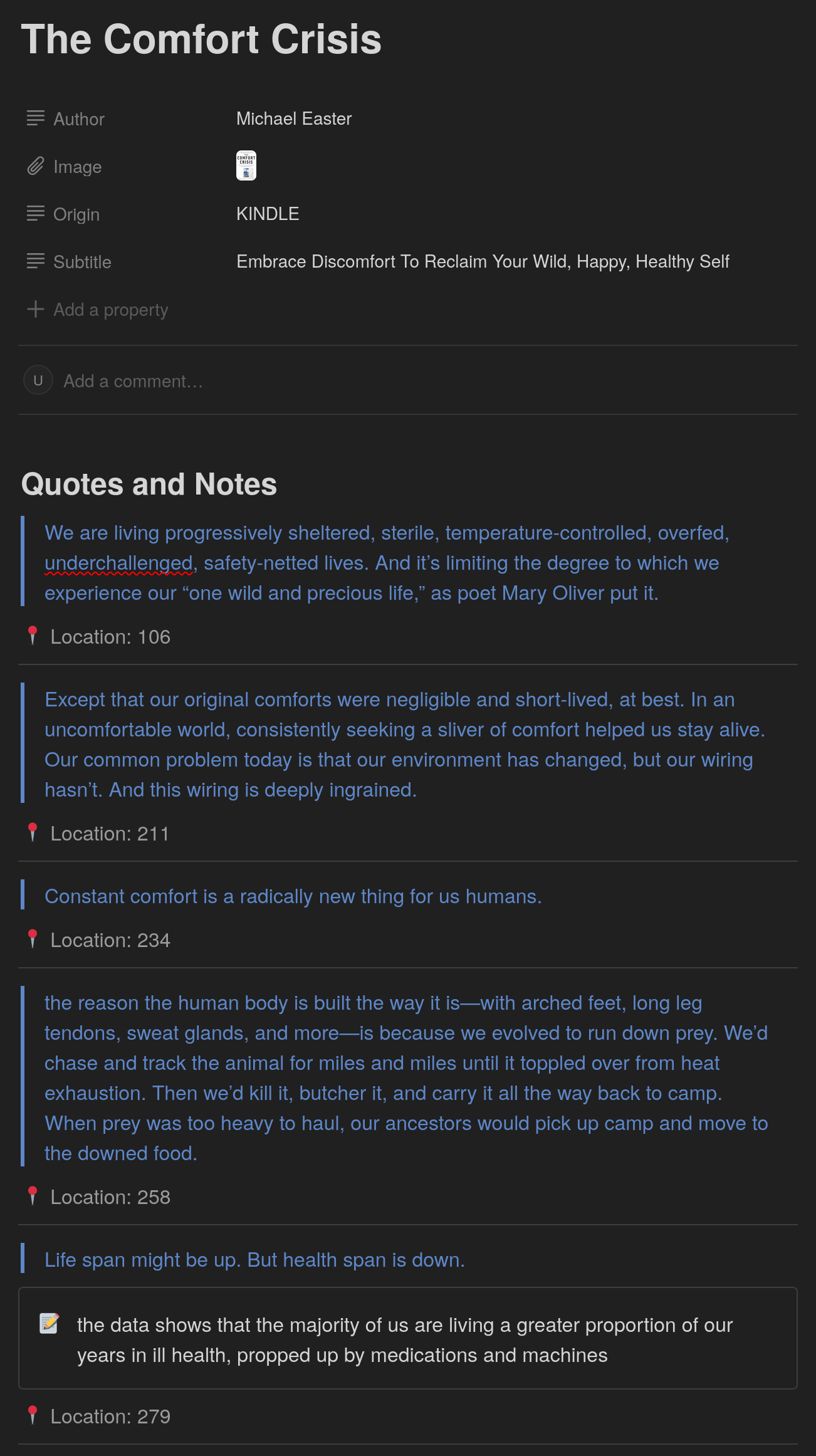
Unearthed creates a Sources database under the connected Notion template page. Each book has a title, subtitle, author, cover image and import origin. Open a book to find its Quotes and Notes section, with your highlights, annotations and reading locations together.
How updates work
Exports run in the background, so a large library may take a while to appear after setup. On later syncs, Unearthed finds each book by its title and author and adds any missing highlights. Changes made in Notion stay in Notion. Changes to a note already exported from Unearthed also won’t automatically replace its Notion copy.
- Keep the Sources database in the page you connected, with access enabled for Unearthed.
- Keep the synced title and author unchanged so Unearthed can find the book again.
- If you’re trying the connection for the first time, add a highlight to one book and sync it before importing the rest of your library.
Choose the Online edition for Notion
Local exports directly to Obsidian and Craft. For Unearthed’s Notion integration, choose Online. Online has a monthly subscription, and you can read its code on GitHub.
Troubleshoot a missing Notion book
Check that the book appears in Unearthed Online and isn’t marked as ignored. Then look in the connected workspace’s Sources database and allow any queued exports to finish. If you removed the database or revoked access, reconnect Notion in Unearthed’s settings. If a book appears twice, check whether its title or author was changed in Notion.